
Want to skip the night in two seconds, rescue a friend who got lost 3,000 blocks from spawn, or summon a zombie right behind them? Minecraft commands turn the game into a proper toolbox. They are great for having fun with friends, building an adventure map, and running a server.
This guide is not a wall of text copied from a console. Every command comes with an example and a reason you might actually use it. We also point out the differences between Java Edition and Bedrock Edition, plus the commands that only arrived in newer versions.
A quick note about version numbers: since 2026, Minecraft uses numbers such as 26.1 and 26.3. When this guide says “Java 1.20.3+,” that is the historical version that introduced the command. The command is still available in later releases, including 26.x versions.
Before you start: enable commands and check your permissions
Two different things can stop a command from working. In a single-player world, commands must be enabled in the settings. On a multiplayer server, your account must have the required permissions. Choose the situation that matches yours:
- You are creating a Java world: in the new world options, turn on Allow Commands before starting the game.
- Your Java world already exists: press Esc, choose Open to LAN, set Allow Commands to On, then select Start LAN World. Commands will remain available until you leave the world.
- You are playing on Bedrock: open the world settings, go to Game, then turn on Activate Cheats.
- You are playing on a multiplayer server: you need operator status or the required permission. If you do not manage the server, ask an administrator to grant it.
On Bedrock, enabling cheats permanently disables achievements for that world, even if you turn cheats off later. If achievements matter to you, experiment in a copy of the world instead.
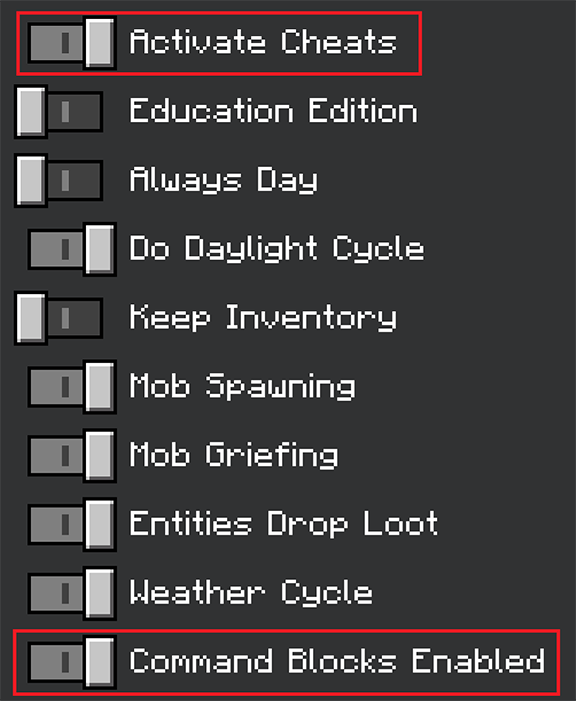
On Bedrock, Activate Cheats is enough to enter commands in chat. Command Blocks Enabled is only needed if you want to use the command blocks covered later in this guide.
Only give operator rights to people you trust. One bad command can empty every inventory, replace thousands of blocks, or stop the server. Before a big /fill, /clone, /clear, /kill, or /tp, a backup can save the evening.
How to read a command without getting a headache
In chat, a command begins with /, followed by its name, target, and options:
/gamemode creative @s
Here, /gamemode changes the game mode, creative chooses Creative mode, and @s means “myself.”
A few useful shortcuts:
- Type
/helpto see the commands you can use. - On Java, press Tab while typing. Minecraft completes names and shows what can come next.
- On Bedrock, use
/help command_nameand the suggestions displayed in chat. - If part of the command turns red, stop there: that is usually where the syntax no longer matches.
- Prefer full identifiers such as
minecraft:diamondandminecraft:zombie.
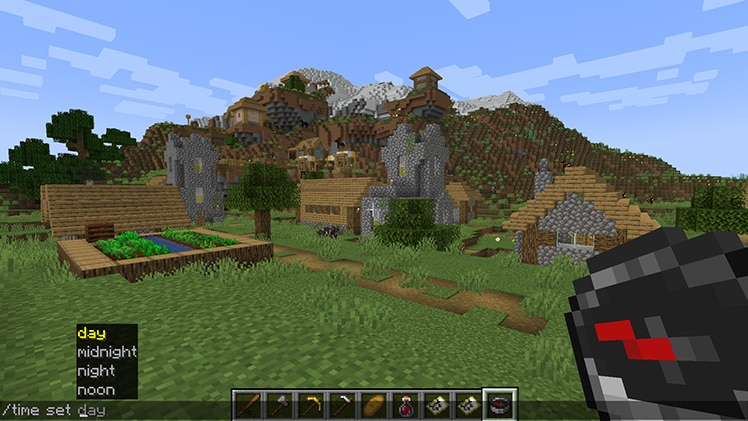
Here, Minecraft directly suggests the values accepted by /time set. It is faster and much safer than guessing the rest of the command.
Command blocks and some consoles may accept commands without /. We keep the slash in every example so commands are easy to spot.
Selectors: choose who receives the command
You do not always need to type a player’s name. Selectors automatically find the right target—or the whole server if you are not careful.
| Selector | Who does it target? |
|---|---|
@s |
the person or entity running the command |
@p |
the nearest player |
@a |
every player |
@r |
one random player |
@e |
every entity, including players |
To remove only loaded zombies:
/kill @e[type=minecraft:zombie]
You can add several filters inside the brackets. Java and Bedrock do not always use the same filter names.
Java Edition—up to five zombies within twenty blocks:
/kill @e[type=minecraft:zombie,distance=..20,limit=5]
Bedrock Edition—the same idea, with r for radius and c for count:
/kill @e[type=minecraft:zombie,r=20,c=5]
The classic trap is using a selector that is too broad. /kill @e does not just remove monsters: players, animals, dropped items, and vehicles may disappear too. For your first tests, replace @a and @e with your username or @s.
Coordinates: X, Y, Z, ~, and ^
Minecraft locates every block with three numbers in X Y Z order:
- X: east or west.
- Y: height.
- Z: north or south.
To teleport to an exact position:
/tp @s 100 64 -20
The ~ symbol means “from my current position.” To move ten blocks upward without calculating anything:
/tp @s ~ ~10 ~
The ^ symbol follows the direction you are facing. To move five blocks forward:
/tp @s ^ ^ ^5
Inside a command block, the starting point is normally the block itself. With /execute, remember the as and at pair: as chooses who runs the action, while at moves the starting point to that entity.
The first commands worth learning
These examples work in recent Java and Bedrock versions and are perfect for getting started:
| You want to… | Command |
|---|---|
| display help | /help |
| list connected players | /list |
| write in the server chat | /say Welcome to the server! |
| send a private message | /msg Alex Meet me at spawn! |
| switch to Creative | /gamemode creative @s |
| return to Survival | /gamemode survival @s |
| make it daytime | /time set day |
| stop the rain | /weather clear |
| set the difficulty | /difficulty normal |
| keep inventories after death | /gamerule keepInventory true |
| teleport yourself | /tp @s 100 64 -20 |
| set your respawn point | /spawnpoint @s ~ ~ ~ |
| move the world spawn | /setworldspawn ~ ~ ~ |
| get one diamond | /give @s minecraft:diamond 1 |
| remove all dirt from your inventory | /clear @s minecraft:dirt |
| enchant the held item | /enchant @s minecraft:unbreaking 3 |
| summon a zombie | /summon minecraft:zombie ~ ~ ~ |
| remove loaded zombies | /kill @e[type=minecraft:zombie] |
A gamerule changes the entire world, not just your character. /gamerule keepInventory true therefore lets every player keep their inventory after dying.
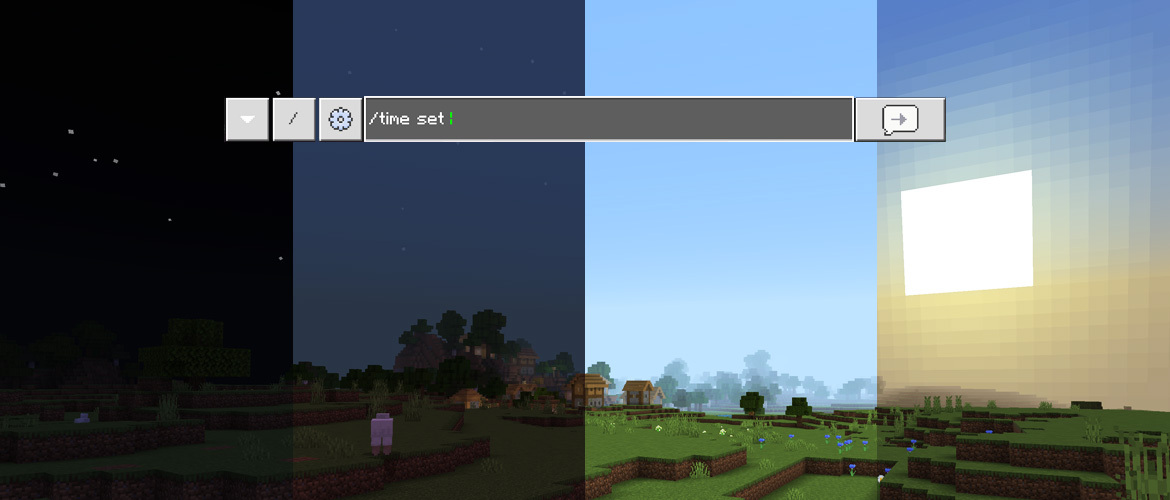
The result of /time set is immediate. That makes it handy for preparing a screenshot, starting an event at sunset, or simply avoiding another creeper-filled night.
Effects, XP, and locating things: where Java and Bedrock split
Both editions can do almost the same things, but they do not always put the words in the same order.
Run faster for one minute
Java Edition:
/effect give @s minecraft:speed 60 1 true
Bedrock Edition:
/effect @s speed 60 1 true
60 is the duration in seconds. 1 gives a level II effect because Minecraft starts effect amplifiers at zero. The final true hides the particles.
To clear every effect:
/effect clear @s
on Java, or:
/effect @s clear
on Bedrock.
Add ten experience levels
Java Edition:
/experience add @s 10 levels
Bedrock Edition:
/xp 10L @s
On Bedrock, the L matters. Without it, you add experience points rather than ten complete levels.
Find a stronghold
Java Edition:
/locate structure minecraft:stronghold
Bedrock Edition:
/locate structure stronghold
Categories and identifiers change between updates. Type /locate and let autocomplete show what your version actually knows.
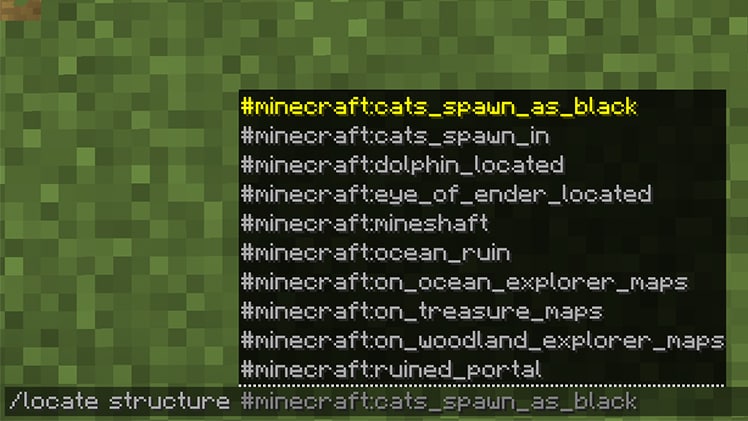
Minecraft builds this list from your edition and version. If a structure is not suggested here, copying its name from an old video will not make it work.
Deal damage, spread a group, and set the mood
/damage deals an exact number of damage points. It is available on Java starting with 1.19.4, and current Bedrock versions have it too. One heart equals two health points:
/damage @s 2
This removes one heart, not two.
To spread players before a UHC match or event, use /spreadplayers:
Java Edition:
/spreadplayers 0 0 10 100 false @a
Bedrock Edition:
/spreadplayers 0 0 10 100 @a
These examples keep players at least ten blocks apart inside a 100-block area around X=0 and Z=0. Test before the real start: mountains, oceans, and unloaded terrain can change the result.
For a more lively map, explore /particle, /playsound, and /stopsound. A burst of particles at spawn or a sound before a boss fight makes a huge difference, but sound names and argument order differ between Java and Bedrock. Your edition’s autocomplete is your best friend here.
Build faster with /setblock, /fill, and /clone
Ever spent twenty minutes placing a floor block by block, only to discover it was one block too far to the left? These commands can spare you the pain.
Place a gold block under your feet:
/setblock ~ ~-1 ~ minecraft:gold_block
Create an 11-by-11 stone platform:
/fill ~-5 ~-1 ~-5 ~5 ~-1 ~5 minecraft:stone
Copy a build to another position:
/clone 0 64 0 10 70 10 20 64 20
There is a catch: /fill and /clone can erase a build just as quickly. Write down both corners, check the X Y Z order, and start with a small area. A backup is better than a castle replaced by a stone cube.
Make real game mechanics with /execute, /tag, and /scoreboard
/execute can run a command as a player, at their position, or only when a condition is true.
Make every player speak from their own position:
/execute as @a at @s run say I'm here!
Detect players standing on grass:
/execute as @a at @s if block ~ ~-1 ~ minecraft:grass_block run say I'm standing on grass!
/tag attaches an invisible label to an entity. It is handy for builders, teams, or a special boss:
/tag @s add builder
/gamemode creative @a[tag=builder]
/scoreboard stores numbers such as points, rounds won, completed quests, or deaths. Here is a tiny point counter:
/scoreboard objectives add points dummy
/scoreboard objectives setdisplay sidebar points
/scoreboard players add @s points 1
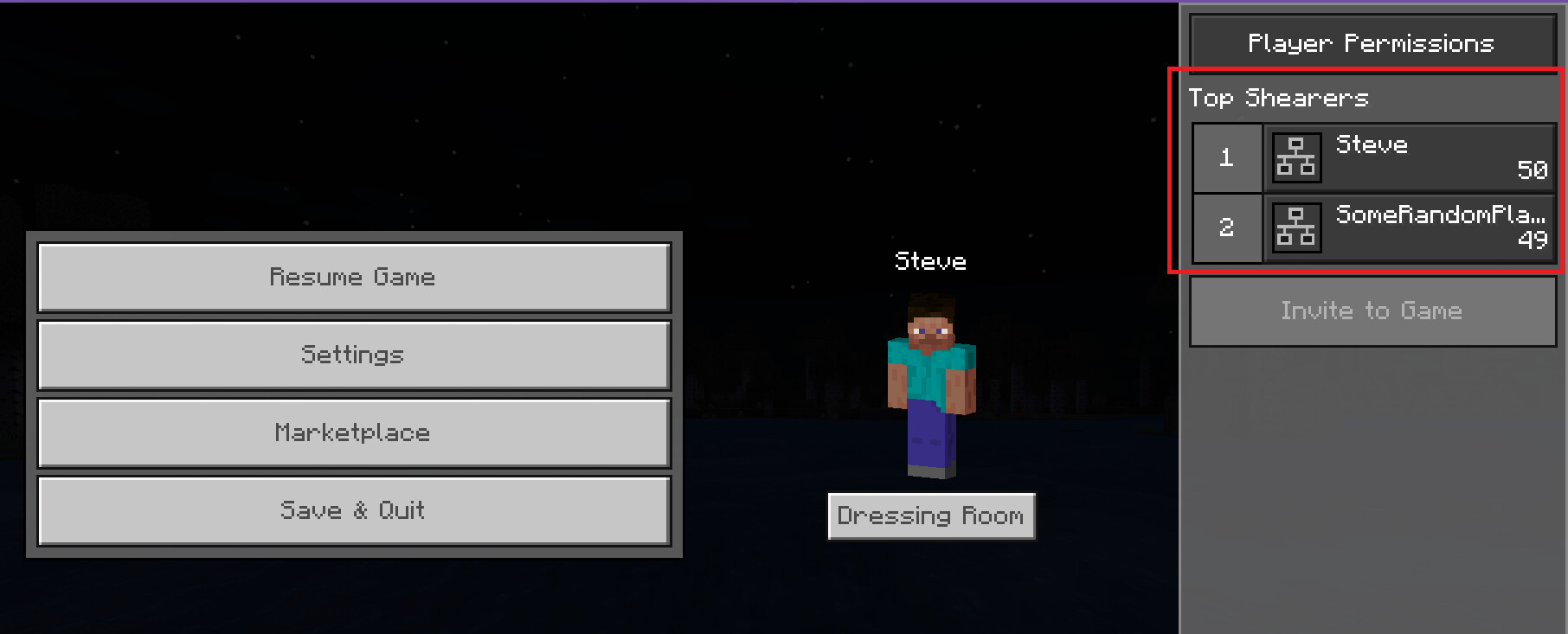
A scoreboard can appear in the sidebar or player list. It then becomes a real part of the game interface rather than a number hidden inside a command.
You can then reward players who reach ten points:
/give @a[scores={points=10..}] minecraft:diamond 1
Do not repeat that last command every tick unless you want it to rain diamonds. Add a tag, another score, or a condition so the reward is only given once.
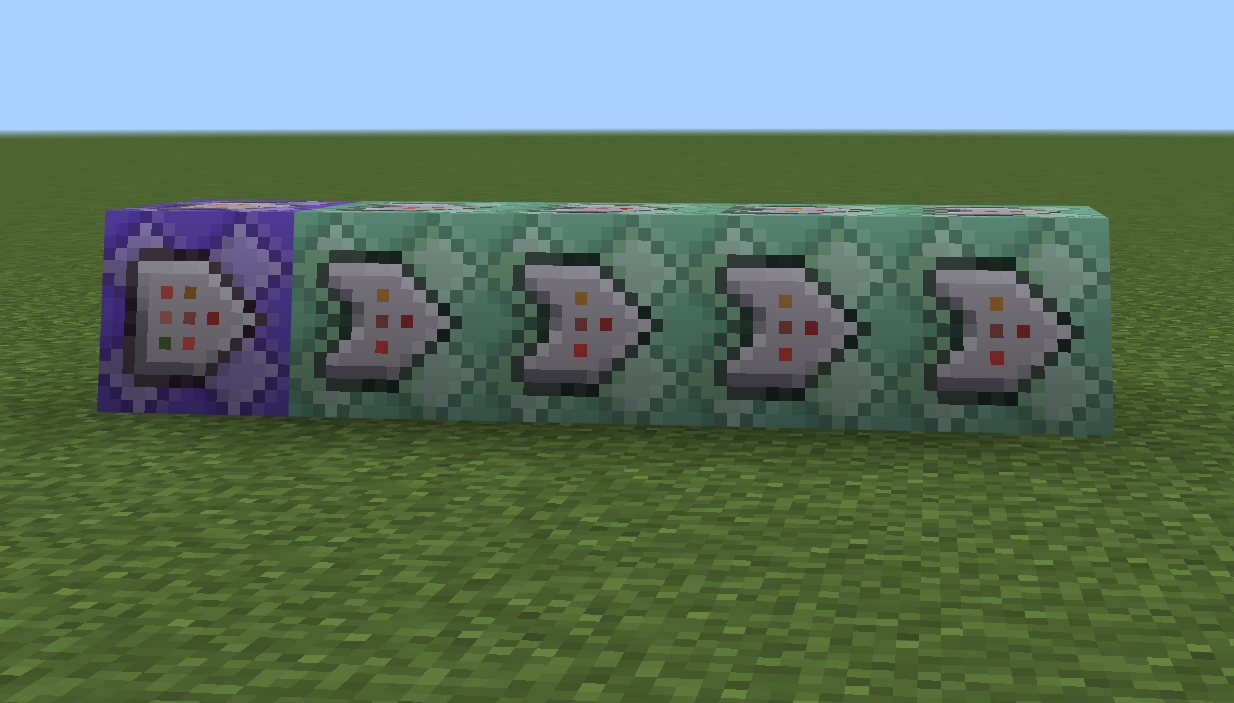
A complete mechanic often combines several blocks: the first detects the action, while the following blocks check conditions and give the reward.
Functions and scheduled commands
When a mechanic needs ten, twenty, or one hundred commands, command blocks quickly turn into redstone spaghetti. Functions store those commands in a file and run them in the right order.
On Java, /function is available starting with 1.12, and functions usually live in a data pack:
/function mypack:start
To run a function ten seconds later, /schedule is available on Java starting with 1.14:
/schedule function mypack:event 10s
After editing a data pack:
/reload
Current Bedrock versions also have /function, /schedule, and /reload, but they use behavior packs and their own syntax. Do not paste a Java line into Bedrock without checking the chat suggestions.
Messages that look better than a server log
Java uses a JSON text component for a colored message:
/tellraw @a {"text":"Welcome!","color":"gold","bold":true}
Bedrock uses a different JSON structure:
/tellraw @a {"rawtext":[{"text":"Welcome!"}]}
A simple large title on Bedrock:
/title @a title Welcome!
On Java:
/title @a title {"text":"Welcome!","color":"gold"}
Bedrock also offers /titleraw for JSON titles. If nothing appears, look for a missing comma, brace, or quote first. JSON is not forgiving about tiny typos.
Run a Java server without causing chaos
These commands are mainly useful from the console or with operator rights:
| Action | Command |
|---|---|
| grant operator rights | /op Alex |
| remove operator rights | /deop Alex |
| kick a player | /kick Alex Reason |
| ban a player | /ban Alex Reason |
| ban an IP address | /ban-ip 203.0.113.10 |
| remove a player ban | /pardon Alex |
| display bans | /banlist |
| enable the whitelist | /whitelist on |
| add an allowed player | /whitelist add Alex |
| display the whitelist | /whitelist list |
| set the default game mode | /defaultgamemode survival |
| display the world seed | /seed |
| check the game tick rate | /tick query (Java 1.20.3+) |
| force world data to disk | /save-all flush |
| re-enable automatic saves | /save-on |
| stop the server cleanly | /stop |
/defaultgamemode chooses the mode given to new players by default. /gamemode changes one specific player’s mode.
The /tick command (Java 1.20.3+) can inspect, speed up, slow down, or freeze the game’s ticking, depending on the available subcommand. Start with /tick query, and do not change a live server’s speed just to see what happens.
/save-off disables automatic saves. Only use it for a controlled operation, then always finish with /save-on. For everyday backups, prefer the tool supplied by your hosting provider.
Run a Bedrock server
Bedrock uses /allowlist where Java uses /whitelist:
| Action | Command |
|---|---|
| grant operator rights | /op Alex |
| remove operator rights | /deop Alex |
| kick a player | /kick Alex Reason |
| enable the allowlist | /allowlist on |
| add a player | /allowlist add Alex |
| remove a player | /allowlist remove Alex |
| display the allowlist | /allowlist list |
| reload the allowlist | /allowlist reload |
| set the maximum player count | /setmaxplayers 20 |
| pause world writes | /save hold |
| check whether files are ready | /save query |
| resume world writes | /save resume |
| stop the dedicated server | /stop |
The /save hold, /save query, and /save resume trio lets you copy a dedicated server’s files in a consistent state. Never forget /save resume, or the world remains paused for writing.
Command blocks: your first automatic machine
To get a command block:
/give @s minecraft:command_block
There are three modes:
- Impulse: runs once when the block receives a signal.
- Chain: runs after the previous block, following the arrow.
- Repeat: keeps running while the block is active.
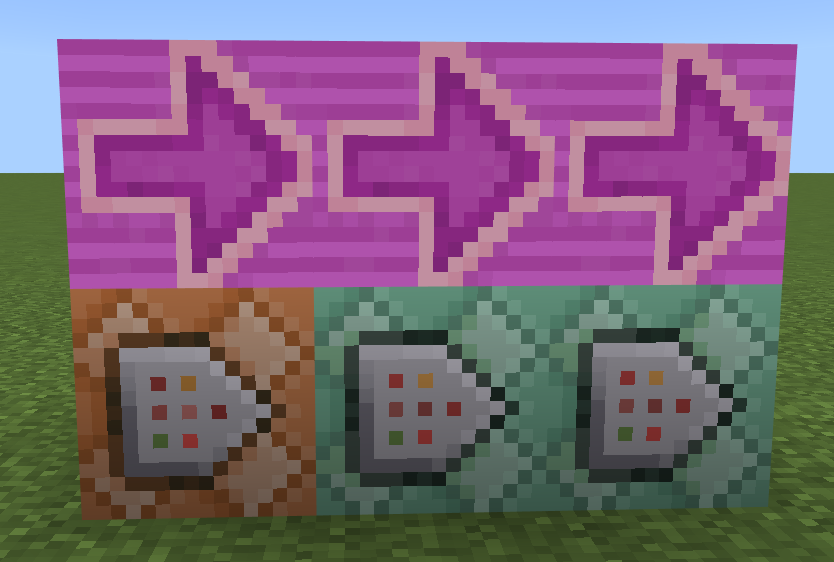
The arrows drawn on the blocks show the execution order. If a chain refuses to run, first check that every block points in the correct direction.
A block can also be conditional, require redstone, or stay always active. Start with a small visible chain. Three tidy blocks are much easier to understand than a wall of forty blocks pointing in every direction.
Be especially careful with a heavy repeating command that uses @e. A block can run up to twenty times per second. If every run scans every entity, the server can quickly struggle. Filter with type, tag, distance, or score.
Recent commands to check against your version
Basic commands such as /tp, /give, and /time have existed for a long time. The commands below are newer, which explains why a video may work for your friend but fail on an older server version:
| Command and minimum version | What does it do? |
|---|---|
/function (Java 1.12+) |
run commands stored in a data pack function |
/schedule (Java 1.14+) |
schedule a function for later |
/spectate (Java 1.15+) |
spectate an entity while in Spectator mode |
/item (Java 1.17+) |
modify or replace an item in an inventory slot |
/place (Java 1.19+) |
place a world-generation element; current Bedrock versions also have it with different syntax |
/fillbiome (Java 1.19.3+) |
change the biome in an area |
/damage (Java 1.19.4+) |
deal an exact amount of damage; also available on current Bedrock versions |
/ride (Java 1.19.4+) |
mount or dismount an entity; also exists on Bedrock |
/return (Java 1.20+) |
stop a function and return a result |
/random (Java 1.20.2+) |
generate a random value |
/tick (Java 1.20.3+) |
inspect or control game ticking |
/transfer (Java 1.20.5+) |
move a player to another dedicated server; also exists on Bedrock |
/camera (Bedrock 1.20.0+) |
control a camera; it first appeared as an experimental feature |
/hud (Bedrock 1.20.60+) |
show or hide HUD elements; it first appeared as an experimental feature |
A few Java examples:
/item replace entity @s weapon.mainhand with minecraft:diamond_sword
/fillbiome ~-8 ~-8 ~-8 ~8 ~8 ~8 minecraft:desert
/random value 1..6
/spectate requires Spectator mode. /return is mainly useful inside a function. On Java, /transfer only works on a dedicated server, not in a single-player world.
Bedrock also keeps several commands closely tied to its ecosystem, including /camera, /camerashake, /daylock, /event, /hud, /mobevent, /music, /playanimation, /structure, /tickingarea, and /titleraw. Some require an add-on, a dedicated server, or specific creator options.
Starting with Java 1.20.5, the way items are written in /give, /item, and /loot also changed with the component system. An old command using NBT data inside braces may therefore turn red on a modern version even though the command itself still exists.
My command does not work: a one-minute check
You probably do not need to reinstall Minecraft. Check these points in order:
- Are commands allowed? Enable them in a world, or check your server permissions.
- Is the tutorial for the right edition? A Java command may not paste directly into Bedrock.
- Is your version recent enough? Look at the version notes in this guide.
- Where does the text turn red? The first red section often reveals the wrong argument.
- Does the selector find anyone? A filter may be so precise that it matches nothing.
- Are the coordinates in X Y Z order? Check the
-,~, and^symbols too. - Does the identifier exist? A block, item, or entity may have been renamed.
- Where are you running the command? Chat, console, command blocks, and functions do not always share the same starting point.
- Is the JSON valid? One missing comma can break
/tellrawor/title. - Is a plugin or mod replacing the vanilla command? Autocomplete may reveal the real namespace on a modified server.
For a risky command, test in a world copy or target only yourself. Ten seconds of checking can prevent ten hours of rebuilding.
Good habits before pressing Enter
- Make a recent backup.
- Write down the server’s exact edition and version.
- Use autocomplete through the final argument.
- Test with
@sor your username first. - Try
/filland/cloneon a small area. - Read the source and destination coordinates again.
- Filter repeating command blocks.
- Keep console access in case you break your permissions.
- Stop a server with
/stop, never by brutally killing its process.
Your turn
Start small: try /time set day, /weather clear, then a short /tp. Once selectors and coordinates feel natural, move on to /execute, /scoreboard, and functions. That is when Minecraft really starts to feel like your own game inside the game.
If you are still learning the basic mechanics, our Getting Started with Minecraft: A Complete Beginner’s Guide will help you begin on the right foot.
And if you want to test all of this with friends without leaving a world open on your PC, you can create a BoxToPlay Minecraft server. Backups and the console stay available from the panel—very useful when an enthusiastic /fill reaches a little farther than planned.
More Articles
Minecraft 100-player server: prevent a launch-day crash
September 02, 2026Minecraft Bedrock: Official BDS, Add-ons, and NukkitX Plugins
August 24, 2026How to install Cobblemon Academy 2.0 on a Minecraft server
August 09, 2026Minecraft 26.3: all the features announced so far
July 31, 2026